Best IPTV Players in 2026: The Complete Comparison
You already have an IPTV subscription — an M3U link or an Xtream Codes login from your provider — and now you just need the right app to play it well. An IPTV player is like VLC for live TV: it holds no channels of its own, it simply reads the playlist you provide and presents it with categories, a TV guide, favourites and search. This guide compares the most popular players of 2026 — Omni Prime, TiviMate, IPTV Smarters, OTT Navigator and Perfect Player — across the things that actually matter: which devices they run on, M3U and Xtream support, EPG quality, and price. We finish with a step-by-step setup, the settings that stop buffering, and fixes for the most common problems.
What an IPTV player actually is
An IPTV player is a media app, much like VLC but built for live TV. It reads a playlist you provide and plays it on a clean, TV-friendly interface with categories, an electronic program guide (EPG), favourites and search.
Crucially, a player does not include, sell or host any channels, movies or streams. You bring your own playlist — an M3U/M3U8 URL or an Xtream Codes login — from a provider you already subscribe to. The app is the screen; the content is yours. Keep that in mind while reading any comparison: the “best” player is simply the one that plays your playlist most reliably, on the devices you own, with a remote-friendly interface you enjoy using.
How we compare IPTV players
Rather than declare a single winner, it helps to score each player against the same neutral checklist. These are the criteria that separate a good player from a frustrating one:
- Device coverage — does it run natively on your Samsung, LG, Android TV, Apple TV or phone, without sideloading?
- Playlist formats — does it support both M3U/M3U8 and Xtream Codes, so any provider works?
- EPG quality — a full, accurate TV guide with catch-up support where the provider offers it.
- Large-list performance — big playlists (10,000+ entries) should open without freezing.
- Playback engine — hardware decoding for TS / HLS / H.264 / HEVC so HD and 4K play smoothly.
- Remote-first UI — designed for a D-pad, with favourites and continue-watching.
- Price and trial — is it free, one-time or subscription, and can you test it before you commit?
IPTV players compared (2026)
Here is how the most popular players stack up against that checklist. Availability and features change over time, so treat this as a starting point and always test with your own playlist.
| Player | Main platforms | M3U | Xtream | EPG | Price | Trial |
|---|---|---|---|---|---|---|
| Omni Prime | Samsung, LG, Android TV, Apple TV, phones | Yes | Yes | Yes + catch-up | Subscription | 7 days |
| TiviMate | Android TV, Fire TV, Android phones | Yes | Yes | Yes + catch-up | Free / Premium | Free tier |
| IPTV Smarters | Android, iOS, some TVs | Yes | Yes | Yes | Free | Free |
| OTT Navigator | Android TV, Fire TV, Android | Yes | Yes | Yes + catch-up | Free / Premium | Trial |
| Perfect Player | Android, older platforms | Yes | Yes | Yes | Free / Paid | Free tier |
Availability varies by region and store. A player that runs natively on your TV brand usually beats one that needs a separate box.
💡 The biggest practical difference is device coverage. TiviMate, OTT Navigator and Perfect Player are Android-centric, so on a Samsung or LG TV you would need an Android box to run them. Omni Prime and IPTV Smarters reach more platforms directly.
A closer look at each player
TiviMate is a long-time favourite on Android TV and Fire TV. Its EPG-driven interface and catch-up support are excellent, and the Premium tier adds multiple playlists and recording. The catch: it is Android-only, so it will not install on a Samsung or LG smart TV directly.
IPTV Smarters is widely available and free, with clean M3U and Xtream support. Providers often rebrand it, so you may see it under different names. It is a dependable, no-frills choice across Android and iOS.
OTT Navigator is highly customisable, with strong EPG handling, catch-up and flexible layouts. Power users love the depth; newcomers may find the settings overwhelming. Like TiviMate, it is Android-focused.
Perfect Player is a lightweight, stable classic. It does the basics — M3U, Xtream, EPG — reliably and runs on older hardware, though its interface feels dated next to newer apps.
🔧 None of these apps come with channels. Whichever you choose, you still add your own M3U or Xtream Codes playlist from the provider you subscribe to.
Where Omni Prime fits
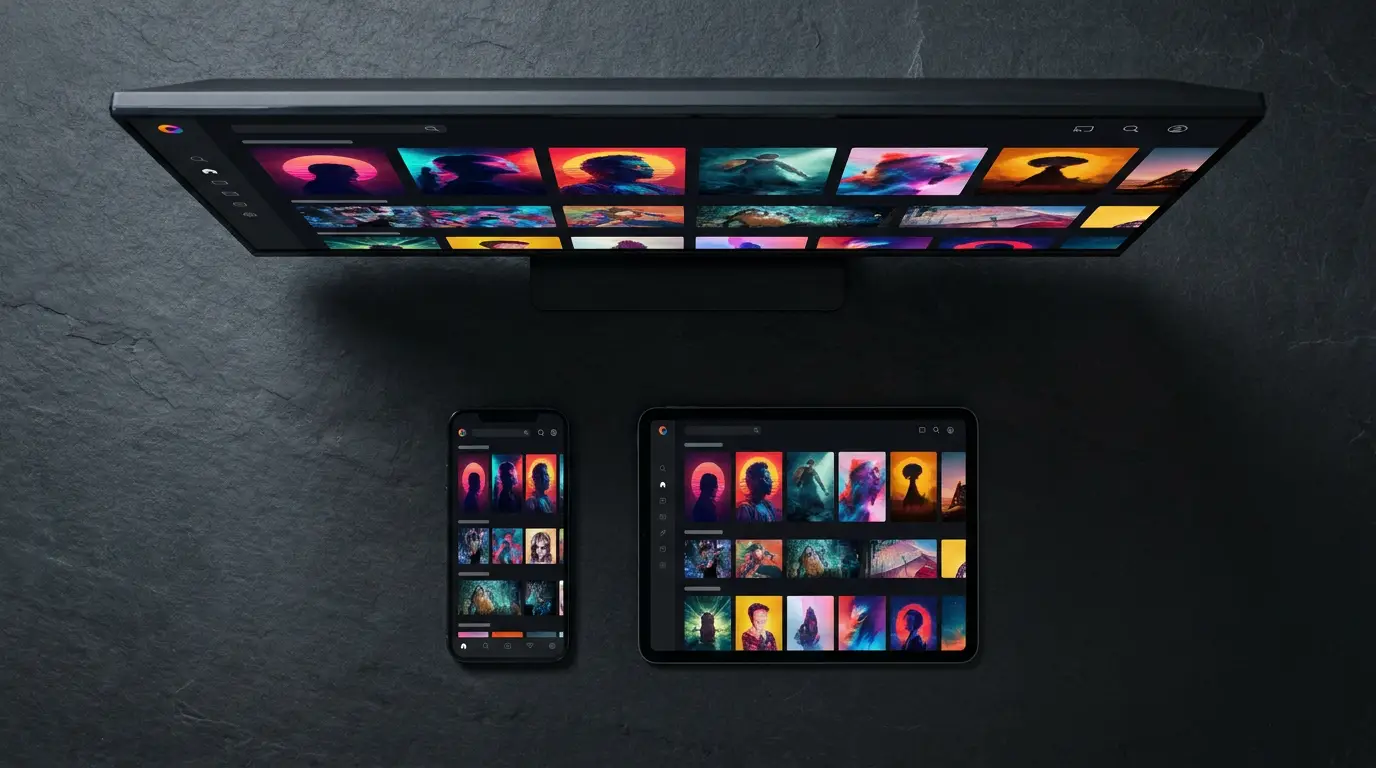
Omni Prime is built to solve the one gap most players share: cross-platform reach. It is a native player on Samsung (Tizen), LG (webOS), Android TV, Apple TV and phones, so you add your playlist once and watch on every screen you own — no Android box required to use it on a smart TV.
Under the hood it supports M3U and Xtream Codes, hardware-decodes TS/HLS/H.264/HEVC, loads very large playlists without freezing, and adds a full EPG with catch-up, favourites, continue-watching and search. It also auto-corrects a common URL mistake — an https link on a non-443 port — so lists that fail elsewhere just work.
How to set up any IPTV player (step by step)
Whichever player you land on, the setup flow is nearly identical. Have your provider’s M3U link or Xtream login ready, then:
- Install the player from your device’s app store (or, on an Android box, from Google Play).
- Open the app and choose Add Playlist.
- For an M3U link, select M3U URL and paste the full
http(s)://…/get.php?username=…link, give it a name, and save. - For Xtream Codes, select Xtream Codes and enter the Server URL, username and password. This loads categories and EPG most cleanly.
- Let the catalogue load, open a channel, and set your favourites.
🔧 If your link is written as https://host:80 or https://host:8080, the https is usually wrong — a non-443 port is almost always plain http. Switch it to http:// and it will connect. A good player fixes this for you.
Settings and tips to stop buffering
Most playback complaints come down to a handful of fixable settings, and they apply to every player:
- Connection: wired Ethernet is best; on Wi-Fi use the 5 GHz band and sit near the router.
- Provider connection limit: many subscriptions allow only one stream at a time (
max_connections: 1). Playing on two devices at once causes drop-outs — close the other device. - Nearest server: if your provider offers multiple servers, pick the one closest to you.
- Codec: HEVC/4K needs hardware that can decode it; on older devices prefer H.264 streams when your provider offers both.
- Buffer size: a slightly larger buffer smooths out shaky connections at the cost of a longer channel-change.
Troubleshooting common problems
- Black screen, timer stuck at 00:00: usually a codec the device can’t decode, or an
https-on-wrong-port URL. Try an H.264 stream and switch the link tohttp://. - “Could not load playlist”: the URL isn’t a real M3U/Xtream link (an email or plain text won’t work). Paste the exact
get.phplink, or use the Xtream server, username and password. - Constant buffering: another device is using your one allowed connection, or your Wi-Fi is weak. Close other devices; go wired if you can.
- No TV guide: your provider must supply an EPG/XMLTV URL, or use the Xtream Codes login which carries EPG automatically.
- App won’t install on my smart TV: Android-only players (TiviMate, OTT Navigator, Perfect Player) need an Android box on a Samsung or LG TV. Choose a natively supported player instead.