Best IPTV Player for Android TV & Fire TV Stick (2026)
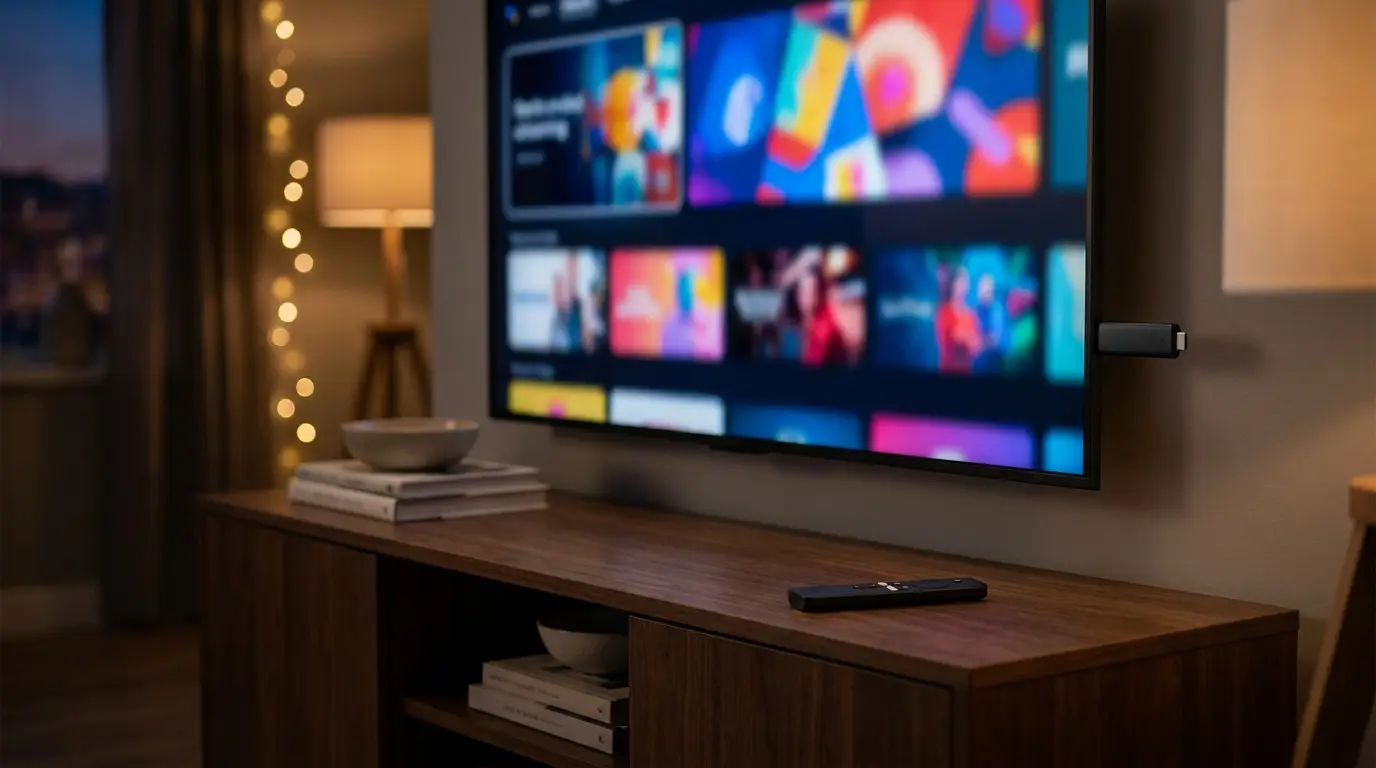
Already have an IPTV subscription — an M3U link or an Xtream Codes login from your provider? An Android TV box, Nvidia Shield or Amazon Fire TV Stick is one of the easiest ways to turn any TV into a premium IPTV player, no smart TV required. This guide explains what an IPTV player actually is, how to install one from the store or by sideloading, which decoder settings stop buffering, and how to fix the problems people hit most often on Android-based devices.
- What an IPTV player is — and what it isn’t
- What to look for in an Android TV / Fire TV player
- How to install: store vs sideload
- How to add your playlist (M3U and Xtream Codes)
- Best decoder & playback settings to stop buffering
- Omni Prime on Android TV & Fire TV Stick
- Android TV & Fire TV IPTV players compared (2026)
- Troubleshooting common Android TV & Fire TV problems
What an IPTV player is — and what it isn’t
An IPTV player is a media app, much like VLC but built for live TV. It reads a playlist you provide and plays it on a clean, remote-friendly interface with categories, an electronic program guide (EPG), favourites, search and continue-watching.
Just as importantly, a player does not include, sell or host any channels, movies or streams. You bring your own playlist — an M3U/M3U8 URL or an Xtream Codes login — from a provider you already subscribe to. The app is the screen; the content is yours. That distinction matters for Google Play and Amazon Appstore rules, and for choosing a tool you can trust on a Fire TV Stick or Android TV box.
On Android-based devices this separation is a real advantage: because the player is just an app, you can swap players any time, keep the same subscription, and move your playlist between a Fire Stick in the bedroom and a Shield in the living room without buying new hardware. A good player is the last piece you install and the one you rarely think about again.
Any of these three devices makes an excellent IPTV host, and they all run full Android apps, decode modern codecs in hardware, and drive any HDMI TV — old or new:
- Fire TV Stick (4K / 4K Max): cheap, tiny, and powerful enough for HEVC 4K. Runs Fire OS (Android under the hood).
- Android TV boxes: Chromecast with Google TV, Onn, Xiaomi Mi Box and similar — full Google Play access and a proper Android TV remote UI.
- Nvidia Shield TV / Shield Pro: the enthusiast pick — the fastest decoder, best HDR handling and rock-solid large-playlist performance.
What to look for in an Android TV / Fire TV player
Not every player runs well on a D-pad remote or on a low-power Fire Stick. Look for these:
- M3U and Xtream Codes support, so any provider format works.
- Hardware decoding (HW+) for TS / HLS / H.264 / HEVC so HD and 4K play smoothly without stutter.
- Fast catalog loading — big playlists (10,000+ entries) should open without freezing a modest Fire Stick.
- Remote-first UI designed for a D-pad, not a touchscreen or mouse.
- EPG (TV guide), favourites, search and continue-watching.
- Store or sideload options, so you can install it whichever way your device allows.
How to install: store vs sideload
You can add a player two ways. Installing from the store is easiest; sideloading is a fallback when an app isn’t published for your device or region.
Store install (recommended):
- On Android TV / Google TV, open Google Play, search the player’s name, and select Install.
- On Fire TV Stick, open the Appstore (magnifier / Find), search the name, and choose Get / Download.
- Launch the app and go to Add Playlist to enter your subscription (next section).
Sideload (Fire TV, when needed):
- Go to Settings → My Fire TV → Developer Options and enable Apps from Unknown Sources for your file-manager app.
- Install a downloader/file-manager app from the Appstore, then use it to fetch the player’s official APK link.
- Open the downloaded APK and choose Install, then Open.
🔧 Only sideload APKs from the developer’s official site. After installing, you can turn Unknown Sources back off — the app stays installed. On Nvidia Shield the same Developer Options toggle lives under Settings → Device Preferences → About (tap Build 7×) then Security.
How to add your playlist (M3U and Xtream Codes)
M3U / M3U8 link: choose Add Playlist → M3U URL, paste the full http(s)://…/get.php?username=… link your provider gave you, name it, and save. Typing a long URL with a remote is painful — many players let you sign in on a phone or scan a code to import it instead.
Xtream Codes: choose Xtream Codes and enter the Server URL, username and password. This format loads categories and EPG most cleanly and is the least error-prone to type.
🔧 Common gotcha: if your link is written as https://host:80 or https://host:8080, the https is usually wrong — a non-443 port is almost always plain http. Change it to http:// and it will connect. A good player fixes this automatically.
Best decoder & playback settings to stop buffering
Most stutter on Android TV and Fire TV comes from the wrong decoder or a saturated connection. Tune these first:
- Decoder: set the player to Hardware+ (HW+) for smooth HEVC/4K. If a specific stream shows artefacts or audio drops, fall back to plain HW or Software (SW) for that channel only.
- Connection: wired Ethernet is best. Fire Stick users can add a USB-Ethernet adapter; on Wi-Fi use the 5 GHz band and sit near the router.
- Provider connection limit: most subscriptions allow only one stream at a time (
max_connections: 1). Playing on two devices at once causes drop-outs — close the other device. - Buffer size: raise the player’s buffer slightly on a weak Fire Stick to smooth out network hiccups.
- Match the display: set the box’s HDMI output to match the content (e.g. 4K/60 or 1080p) instead of forcing everything to 4K.
💡 Rule of thumb: try HW+ first, drop to HW if audio/video desync, and only use SW as a last resort — software decoding taxes a low-power Fire Stick and can overheat it.
Omni Prime on Android TV & Fire TV Stick
Omni Prime is an IPTV player built for exactly this. It supports M3U and Xtream Codes, hardware-decodes TS/HLS/HEVC with an HW+ path, loads very large playlists without freezing a modest Fire Stick, and adds favourites, continue-watching and search — all navigable with a plain D-pad remote.
It installs on Android TV / Google TV and Fire TV Stick (and runs cleanly on Nvidia Shield), and automatically corrects the https-on-wrong-port issue above, so lists that fail elsewhere just work. You can import your playlist from your phone instead of typing a long URL on the remote.
There’s a 7-day free trial, and it’s the same app across Android TV, Fire TV, Samsung, LG, Apple TV and phones — add your playlist once, watch everywhere.
Android TV & Fire TV IPTV players compared (2026)
| Player | Android TV | Fire TV | M3U | Xtream | HW+ decoder | Free trial |
|---|---|---|---|---|---|---|
| Omni Prime | Yes | Yes | Yes | Yes | Yes | 7 days |
| IPTV Smarters | Yes | Yes | Yes | Yes | Yes | Free |
| TiviMate | Yes | Yes | Yes | Yes | Yes | Trial |
| OTT Navigator | Yes | Yes | Yes | Yes | Yes | Trial |
Availability changes over time and by region; check Google Play or the Amazon Appstore. Choose whichever plays your playlist reliably and feels good on the remote.
Troubleshooting common Android TV & Fire TV problems
- Black screen, timer stuck at 00:00: usually a codec the box can’t hardware-decode, or an
https-on-wrong-port URL. Switch the decoder to HW or SW for that stream and change the link tohttp://. - Stutter or audio out of sync: drop from HW+ to HW, raise the buffer, and make sure your HDMI output matches the content resolution.
- “Could not load playlist”: the URL isn’t a real M3U/Xtream link (an email or plain text won’t work). Paste the exact
get.phplink, or use the Xtream Codes login fields. - Constant buffering: another device is using your one allowed connection, or Wi-Fi is weak on the Fire Stick. Close other devices; go wired with a USB-Ethernet adapter if you can.
- App won’t sideload: re-enable Apps from Unknown Sources for your file manager, and only use the developer’s official APK.
- No TV guide: your provider must supply an EPG/XMLTV URL, or use the Xtream Codes login which carries EPG automatically.