How to Set Up IPTV on iPhone & Apple TV (2026): The Complete Guide
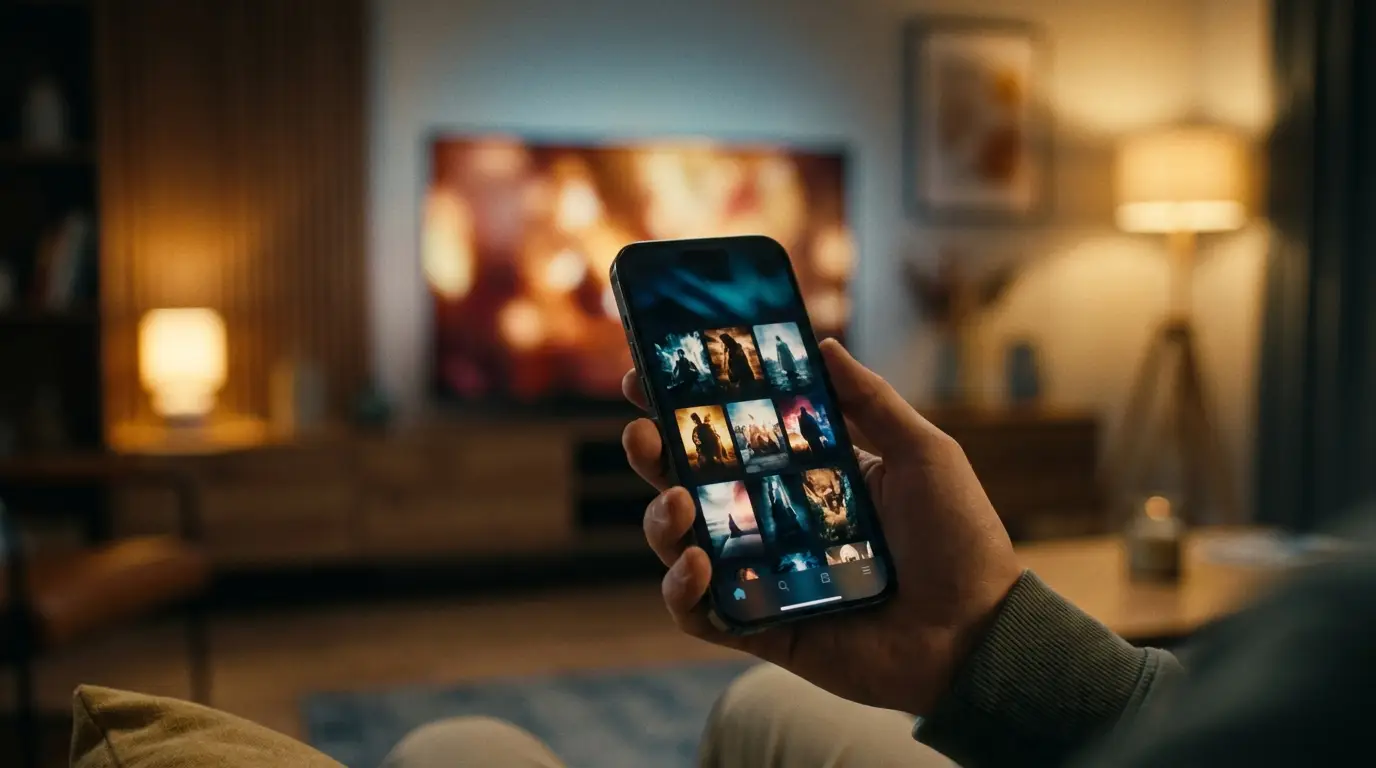
Already have an IPTV subscription — an M3U link or an Xtream Codes login from your provider? Your iPhone, iPad and Apple TV can play it beautifully, all from the same app, with AirPlay to jump from phone to the big screen. This guide explains what an IPTV player is, why a capable player matters on Apple devices (hello, MKV and HEVC), how to add your playlist, the settings that stop buffering, and the fixes for the most common problems.
- What an IPTV player is — and what it isn’t
- Why the player matters on iPhone and Apple TV (codecs & AVPlayer)
- What to look for in an iPhone & Apple TV IPTV player
- How to install and set up on iPhone & iPad
- How to install and set up on Apple TV (tvOS)
- How to add your playlist (M3U and Xtream Codes)
- Using AirPlay and best settings to stop buffering
- Omni Prime on iPhone & Apple TV
- Apple IPTV players compared (2026)
- Troubleshooting common iPhone & Apple TV IPTV problems
What an IPTV player is — and what it isn’t
An IPTV player is a media app, much like VLC but built for live TV. It reads a playlist you provide and plays it on a clean, Apple-friendly interface with categories, an electronic program guide (EPG), favourites and search.
Just as importantly, a player does not include, sell or host any channels, movies or streams. You bring your own playlist — an M3U/M3U8 URL or an Xtream Codes login — from a provider you already subscribe to. The app is the screen; the content is yours. That distinction matters for App Store rules and for choosing a tool you can trust.
Why the player matters on iPhone and Apple TV (codecs & AVPlayer)
Apple’s built-in video engine, AVPlayer, is excellent for the formats Apple ships — but IPTV playlists come from everywhere and often use containers and codecs Apple never intended to handle. That’s where a capable player earns its place.
- MKV containers: many VOD entries are packaged as
.mkv, which AVPlayer simply won’t open. A good player uses its own decoder so MKV plays without conversion. - HEVC / H.265 quirks: Apple supports HEVC, but not every provider’s HEVC stream matches Apple’s exact profile — some play as audio-only or a green screen in AVPlayer. A dedicated player falls back to software decoding when needed.
- Audio tracks: AC-3, E-AC-3 and DTS audio often go silent in Apple’s stack. A proper player handles multiple audio tracks and passthrough.
- Subtitles: embedded SRT/ASS subtitles inside MKV need a player that can render them; AVPlayer usually ignores them.
💡 Rule of thumb: if a stream plays in Safari or the stock TV app but not in your IPTV app, the app is leaning on AVPlayer. If it plays everywhere else but not there, the app needs its own decoder — the kind Omni Prime ships with.
What to look for in an iPhone & Apple TV IPTV player
Not every player runs well across iOS, iPadOS and tvOS. Look for these:
- One app across devices — the same player on iPhone, iPad and Apple TV, so you add your playlist once.
- M3U and Xtream Codes support, so any provider format works.
- Own decoder for MKV, HEVC/H.265, H.264, TS and HLS — not just AVPlayer.
- AirPlay so you can start on the phone and throw it to the Apple TV or an AirPlay TV.
- Fast catalog loading — big playlists (10,000+ entries) should open without freezing.
- EPG (TV guide), favourites and continue-watching.
- Siri Remote-first UI on tvOS, designed for a D-pad and touch surface, not a mouse.
How to install and set up on iPhone & iPad
- Open the App Store on your iPhone or iPad and search for the player’s name.
- Tap Get to install, then Open.
- On first launch, choose Add Playlist to enter your subscription (see the next section).
- Let the catalog load once — after that, categories, EPG and favourites are cached for instant reopening.
🔧 If a video opens but has no sound, check the ringer/silent switch and the in-app audio track menu — many streams carry several audio tracks and the first one may not be the one you want.
How to install and set up on Apple TV (tvOS)
- On your Apple TV, open the App Store and search for the player.
- Select Get, then open the app.
- Typing a long M3U URL with the Siri Remote is painful, so use one of the easy paths below:
- Handoff / iCloud sync: add your playlist on the iPhone first — a synced player carries it to the Apple TV automatically.
- Xtream Codes login: a short server URL, username and password is far quicker to type than a long M3U link.
- On-screen pairing code: some players show a code you enter on a web page from your phone or computer, then push the playlist to the TV.
💡 Prefer Xtream Codes on Apple TV. It’s less typing and it loads categories and the EPG most cleanly.
How to add your playlist (M3U and Xtream Codes)
M3U / M3U8 link: choose Add Playlist → M3U URL, paste the full http(s)://…/get.php?username=… link your provider gave you, name it, and save.
Xtream Codes: choose Xtream Codes and enter the Server URL, username and password. This format loads categories and EPG most cleanly and is the easiest to type on Apple TV.
🔧 Common gotcha: if your link is written as https://host:80 or https://host:8080, the https is usually wrong — a non-443 port is almost always plain http. Change it to http:// and it will connect. A good player fixes this automatically.
Using AirPlay and best settings to stop buffering
AirPlay lets you start a stream on your iPhone or iPad and send it to an Apple TV or AirPlay-capable TV. Two flavours matter:
- Native AirPlay from the player streams the video directly and keeps your phone free — the smoother option, and what a good IPTV player supports.
- Screen Mirroring copies your whole display; it works but uses more battery and can drop frames. Use native AirPlay when the app offers it.
For steady playback on any Apple device:
- Connection: Apple TV on wired Ethernet is best; on Wi-Fi use the 5 GHz band and sit near the router.
- Provider connection limit: most subscriptions allow only one stream at a time (
max_connections: 1). Playing on the phone and the Apple TV at once causes drop-outs — close the other device. - Nearest server: if your provider offers multiple servers, pick the one closest to you.
- Codec: 4K HEVC is heavy; on older hardware prefer an H.264 stream if your provider offers both.
Omni Prime on iPhone & Apple TV
Omni Prime is an IPTV player built for exactly this. It supports M3U and Xtream Codes, ships its own decoder so MKV and awkward HEVC streams play where AVPlayer gives up, and handles multiple audio tracks and embedded subtitles. It loads very large playlists without freezing and adds favourites, continue-watching and search.
It supports AirPlay so you can start on the iPhone and send it to the Apple TV, automatically corrects the https-on-wrong-port issue above, and syncs your playlist across devices — add it once on the phone, and it’s there on the Apple TV.
There’s a 7-day free trial, and it’s the same app across iPhone, iPad, Apple TV, Samsung, LG and Android TV — add your playlist once, watch everywhere.
Apple IPTV players compared (2026)
| Player | iPhone | Apple TV | MKV / HEVC | AirPlay | Xtream | Free trial |
|---|---|---|---|---|---|---|
| Omni Prime | Yes | Yes | Yes | Yes | Yes | 7 days |
| IPTV Smarters | Yes | Yes | Partial | Yes | Yes | Free |
| GSE Smart IPTV | Yes | Yes | Partial | Yes | Yes | Free |
| Stock TV / AVPlayer apps | Yes | Yes | No | Yes | Varies | — |
Availability changes over time and by region; check your App Store. Choose whichever plays your playlist reliably and feels good on the Siri Remote.
Troubleshooting common iPhone & Apple TV IPTV problems
- Video plays but no sound: the stream’s first audio track is AC-3/E-AC-3/DTS and AVPlayer can’t decode it. Switch the audio track in the app, or use a player with its own decoder.
- MKV file won’t open: AVPlayer doesn’t support MKV. Use a player that decodes it natively — no conversion needed.
- Green screen or audio-only on HEVC: the provider’s HEVC profile doesn’t match Apple’s. A player with software fallback decoding fixes it.
- Black screen, timer stuck at 00:00: often an
https-on-wrong-port URL. Switch the link tohttp://and try again. - “Could not load playlist”: the URL isn’t a real M3U/Xtream link (an email or plain text won’t work). Paste the exact
get.phplink from your provider. - Constant buffering: another device is using your one allowed connection, or your Wi-Fi is weak. Close other devices; put the Apple TV on Ethernet.
- No TV guide: your provider must supply an EPG/XMLTV URL, or use the Xtream Codes login which carries EPG automatically.