Best IPTV Player for LG webOS TV (2026): The Complete Setup Guide
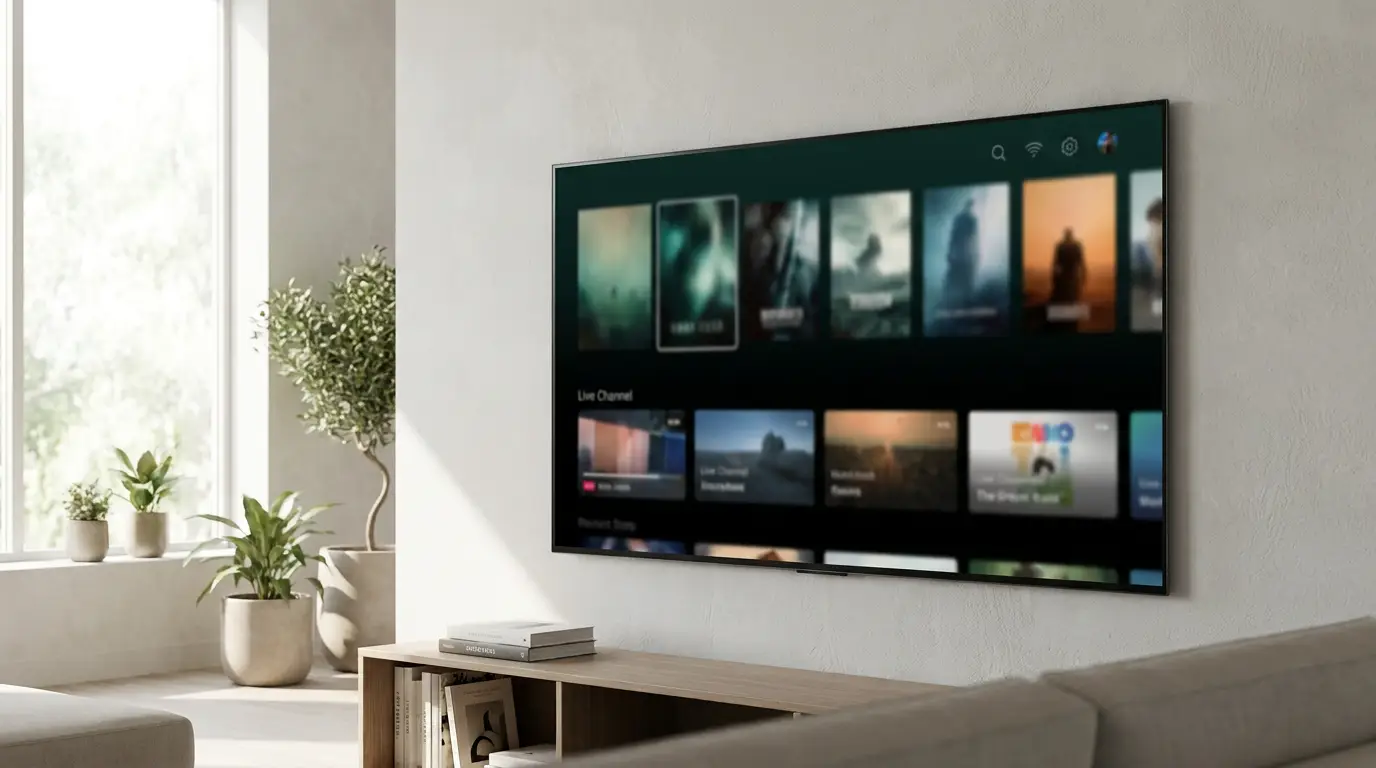
Already have an IPTV subscription — an M3U link or an Xtream Codes login from your provider? Your LG webOS Smart TV can play it beautifully, straight from the LG Content Store, with no extra streaming box. This guide explains what an IPTV player actually is, how to choose a good one for webOS, how to install and set it up, the decoder and playback settings that stop buffering, and the most common problems (and their fixes).
- What an IPTV player is — and what it isn’t
- What to look for in an LG webOS IPTV player
- How to install an IPTV player on your LG webOS TV
- How to add your playlist (M3U and Xtream Codes)
- Decoder and playback settings that stop buffering
- Omni Prime on LG webOS TV
- LG webOS IPTV players compared (2026)
- Troubleshooting common LG webOS IPTV problems
What an IPTV player is — and what it isn’t
An IPTV player is a media app, much like VLC but built for live TV. It reads a playlist you provide and plays it on a clean, TV-friendly interface with categories, an electronic program guide (EPG), favourites and search.
Just as importantly, a player does not include, sell or host any channels, movies or streams. You bring your own playlist — an M3U/M3U8 URL or an Xtream Codes login — from a provider you already subscribe to. The app is the screen; the content is yours. That distinction matters for LG Content Store rules and for choosing a tool you can trust.
What to look for in an LG webOS IPTV player
Not every player runs well on LG’s webOS. The best ones install natively and are tuned for the platform. Look for these:
- Native webOS app — installs from the LG Content Store on the TV itself, no sideloading or developer mode.
- M3U and Xtream Codes support, so any provider format works.
- Fast catalog loading — big playlists (10,000+ entries) should open without freezing the TV.
- Hardware decoding (MediaCodec) for TS / HLS / H.264 / HEVC so HD and 4K play smoothly on the TV’s chip.
- EPG (TV guide), favourites and continue-watching.
- Magic Remote friendly UI — works with the pointer and the D-pad, not just a mouse.
How to install an IPTV player on your LG webOS TV
webOS installs apps from the LG Content Store. The whole process takes a couple of minutes:
- Press the Home button on your LG Magic Remote to open the launcher bar.
- Open the LG Content Store and choose the Search (magnifier) icon.
- Type the player’s name, select it, and choose Install.
- When it finishes, choose Launch — or find its icon on the Home bar.
- On first run, open Add Playlist to enter your subscription (next section).
💡 webOS apps update themselves in the background — you rarely need to reinstall. If a player isn’t listed in your country’s Content Store, most good apps still offer an in-app Add Playlist form that needs no store account at all.
How to add your playlist (M3U and Xtream Codes)
Once the app is open, adding your subscription is the same two-format choice you’d see on any platform:
M3U / M3U8 link: choose Add Playlist → M3U URL, paste the full http(s)://…/get.php?username=… link your provider gave you, name it, and save.
Xtream Codes: choose Xtream Codes and enter the Server URL, username and password. This format loads categories and the EPG most cleanly.
🔧 Common gotcha: if your link is written as https://host:80 or https://host:8080, the https is usually wrong — a non-443 port is almost always plain http. Change it to http:// and it will connect. A good player fixes this automatically.
Decoder and playback settings that stop buffering
webOS TVs have a capable hardware decoder, but a few settings make the difference between smooth 4K and constant spinning:
- Decoder mode: keep the player on MediaCodec (HW) — the TV’s hardware decoder — for TS/HLS/H.264/HEVC. Only fall back to software decoding for an odd stream the TV can’t handle in hardware.
- Connection: wired Ethernet is best; on Wi-Fi use the 5 GHz band and sit near the router.
- Provider connection limit: most subscriptions allow only one stream at a time (
max_connections: 1). Playing on two devices at once causes drop-outs — close the other device. - Nearest server: if your provider offers multiple servers, pick the one closest to you.
- Codec: HEVC/4K needs a TV that can hardware-decode it; on older LG models prefer H.264 streams if your provider offers both.
💡 If a channel opens but stutters on MediaCodec HW, switch that single stream to software decoding to confirm it’s a codec issue — then keep everything else on hardware so the picture stays smooth.
Omni Prime on LG webOS TV
Omni Prime is a native webOS IPTV player built for exactly this. It supports M3U and Xtream Codes, hardware-decodes TS/HLS/HEVC through MediaCodec HW, loads very large playlists without freezing, and adds favourites, continue-watching and search. It works with both the Magic Remote pointer and the D-pad, and it automatically corrects the https-on-wrong-port issue above, so lists that fail elsewhere just work.
There’s a 7-day free trial, and it’s the same app across LG, Samsung, Android TV, Apple TV and phones — add your playlist once, watch everywhere.
LG webOS IPTV players compared (2026)
| Player | webOS native | M3U | Xtream | EPG | Free trial |
|---|---|---|---|---|---|
| Omni Prime | Yes | Yes | Yes | Yes | 7 days |
| Smart IPTV | Yes | Yes | Partial | Yes | Trial |
| IPTV Smarters | Varies | Yes | Yes | Yes | Free |
| SS IPTV | Yes | Yes | No | Yes | Free |
Availability changes over time and by region; check your LG Content Store. Choose whichever plays your playlist reliably and feels good on the Magic Remote.
Troubleshooting common LG webOS IPTV problems
- Black screen, timer stuck at 00:00: usually a codec the TV can’t decode, or an
https-on-wrong-port URL. Try an H.264 stream, switch the link tohttp://, and confirm the decoder is on MediaCodec HW. - “Could not load playlist”: the URL isn’t a real M3U/Xtream link (an email or plain text won’t work). Paste the exact
get.phplink from your provider. - Constant buffering: another device is using your one allowed connection, or your Wi-Fi is weak. Close other devices; go wired if you can.
- App won’t install or open: make sure webOS is up to date (Settings → Support → Software Update), then relaunch the Content Store.
- No TV guide: your provider must supply an EPG/XMLTV URL, or use the Xtream Codes login which carries EPG automatically.